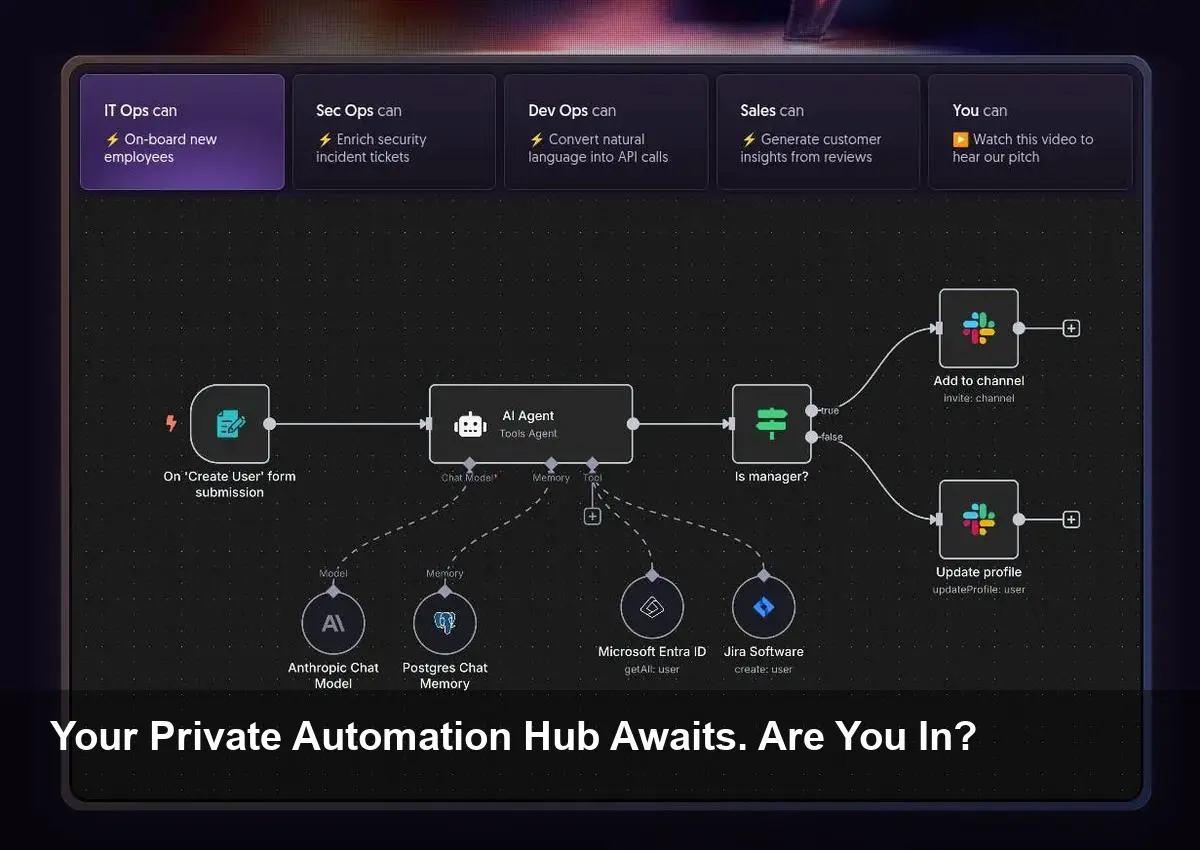
- Full Data Control: Run n8n on your own machine to keep your sensitive data and credentials completely private, eliminating reliance on third-party clouds.
- No More Rate Limits: Escape the limitations and costs of cloud-based plans. A local setup gives you the freedom to run as many workflows and executions as your hardware can handle.
- Ultimate Customization: Gain unparalleled control over your automation environment, from versioning and updates to resource allocation.
- One Command Setup: Using Docker, you can get a fully functional n8n instance running on your computer with a single line of code in your terminal.
Take Back Control of Your Automation
Workflow automation tools have become essential for connecting apps and streamlining processes, but the cloud-based models often come with a catch: recurring fees, usage limitations, and data privacy concerns. What if you could have all the power of a tool like n8n without these drawbacks? The answer is simple: run it yourself, right on your own computer. This guide will show you how to set up a private, powerful, and free n8n instance locally.
Why Go Local with n8n? The Power of Self-Hosting
Running n8n on your own machine isn’t just about saving money—it’s about reclaiming ownership of your data and workflows. When you self-host, your credentials, API keys, and business-critical data never leave your computer. This is a massive advantage for privacy-conscious users and businesses handling sensitive information.
Furthermore, you are no longer bound by the pricing tiers and execution limits imposed by cloud services. Your only constraint is the power of your own hardware, giving you the freedom to build, test, and run complex workflows without worrying about hitting a paywall. This makes a local setup perfect for developers, power users, and anyone who wants to explore the full potential of automation without restrictions.
Your Quick Start Guide to a Local n8n Instance
Getting n8n running is surprisingly straightforward, especially if you use Docker. Docker is a platform that packages applications into “containers,” ensuring they run the same way regardless of your operating system. Here’s how to do it.
Step 1: Install Docker
If you don’t already have it, the first step is to install Docker Desktop. It’s a free application available for Windows, macOS, and Linux. Head over to the official Docker website, download the installer for your system, and follow the simple on-screen instructions.
Step 2: Run the n8n Command
Once Docker is installed and running, open your terminal (or PowerShell on Windows). Now, for the magic. Copy and paste the following command into your terminal and press Enter:
docker run -it --rm \

--name n8n \

-p 5678:5678 \

-v ~/.n8n:/home/node/.n8n \

n8nio/n8n
This command tells Docker to download the latest n8n image, run it in a container named “n8n,” and make it accessible on your computer at port 5678. It also creates a persistent volume (`~/.n8n`) to save your workflows so they won’t be lost when you stop the container.
Step 3: Access Your n8n Canvas
That’s it! Your private n8n server is now running. To start building workflows, open your favorite web browser and navigate to:
You’ll be greeted by the n8n setup screen. Create your owner account, and you’ll be dropped directly into the canvas, ready to connect your favorite apps and build your first workflow. Welcome to the world of limitless, private automation.
Image Referance: https://hackernoon.com/how-to-set-up-n8n-on-your-computer-no-cloud-needed